Tutorials 04
-
Build the following webpage. The images are coming from the https://randomfox.ca/floof API. Feel free to use any CSS framework you want, or none at all. (Note that this is the page I built during the past lecture)
Solution
Note that the following solution uses the Bulma CSS framework that you can download from here.
<!DOCTYPE html>
<html lang="en">
<head>
    <meta charset="UTF-8">
    <meta name="viewport" content="width=device-width, initial-scale=1.0">
    <title>Photo Album</title>
    <link rel="stylesheet" href="bulma.min.css">
    <script src="script.js" defer></script>
</head>
<body>
    <section class="section">
        <div class="container">
        </div>
        <br>
        <br>
        <p class="has-text-centered">
            <button class="button is-dark">Load More</button>
        </p>
    </section>
</body>
</html>
const buttonElement = document.querySelector("button") const getData = async function () { buttonElement.classList.add("is-loading") let columnsString = "" // this loop will run 4 times for (let i = 0; i < 4; i++) { // in each iteration, we're gonna create // the HTML needed for one column. // it's important to keep track of them // because at the end, we need 4 columns to // create a row. const result = await fetch("https://randomfox.ca/floof") // json() method returns a promise, that's // why we need to wait (await) for it. const data = await result.json() const column = ` <div class="column"> <figure class="image"> <img src="${data.image}" /> </figure> </div> ` columnsString += column } // the loop ends here const row = document.createElement("div") // <div></div> row.classList.add("columns") // <div class="columns"></div> row.innerHTML = columnsString // <div class="columns">...HTML code of the 4 columns...</div> const containerElement = document.querySelector(".container") containerElement.append(row) buttonElement.classList.remove("is-loading") } getData() buttonElement.addEventListener("click", getData)

-
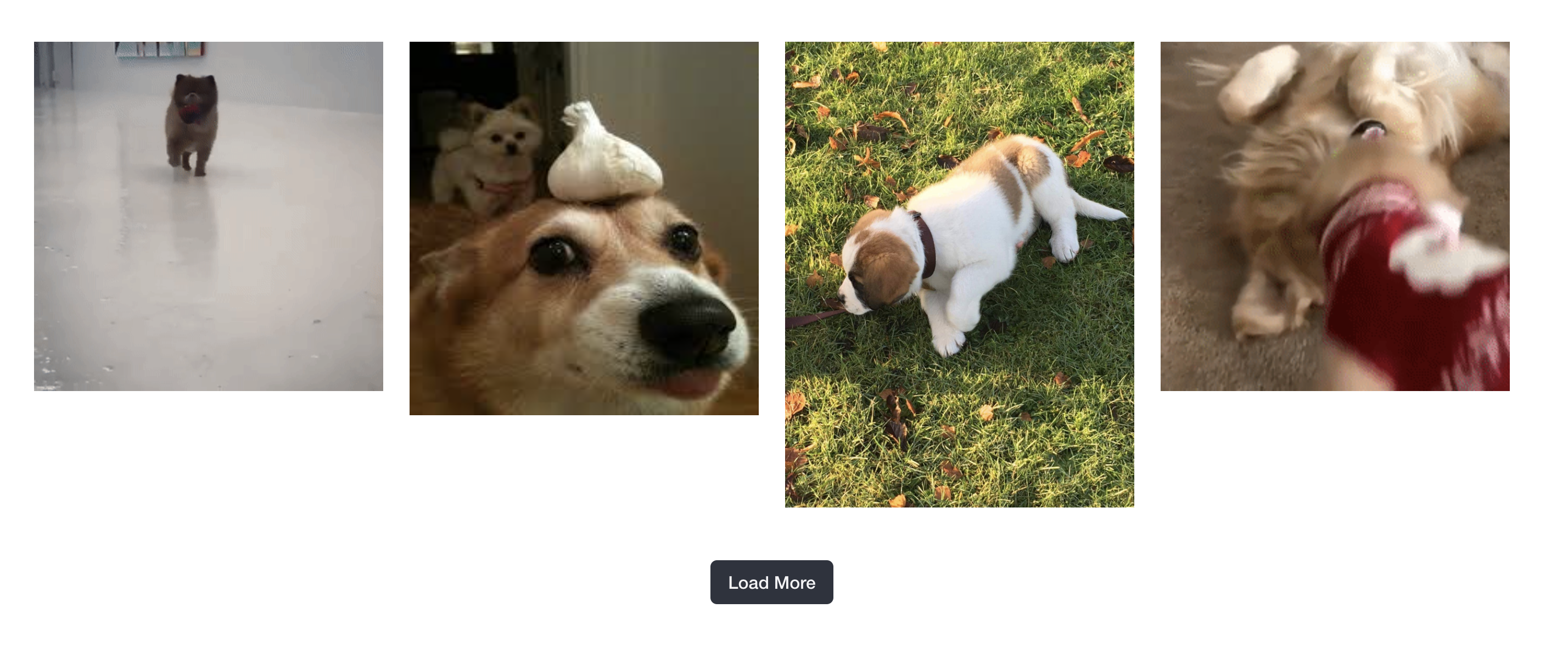
Build the webpage in the previous exercise but use the https://random.dog/woof.json API instead. The page should look like the following. (Some of the images coming from the API may not be valid, but that's fine)
Solution
Same as above, only change the API address in
fetchand the part that creates thecolumnconstant and usedata.urlinstead ofdata.image